USB Guide – Navigate the USB Jungle
Published April 17, 2024
This guide covers all USB types on the market, explains USB hubs and adapters, and breaks down USB data transfer speeds. If you stick with us to the end, you'll also learn the difference between USB-C, Thunderbolt, and USB 4. Exciting stuff!
USB Connector Types Explained (Including Mini and Micro)
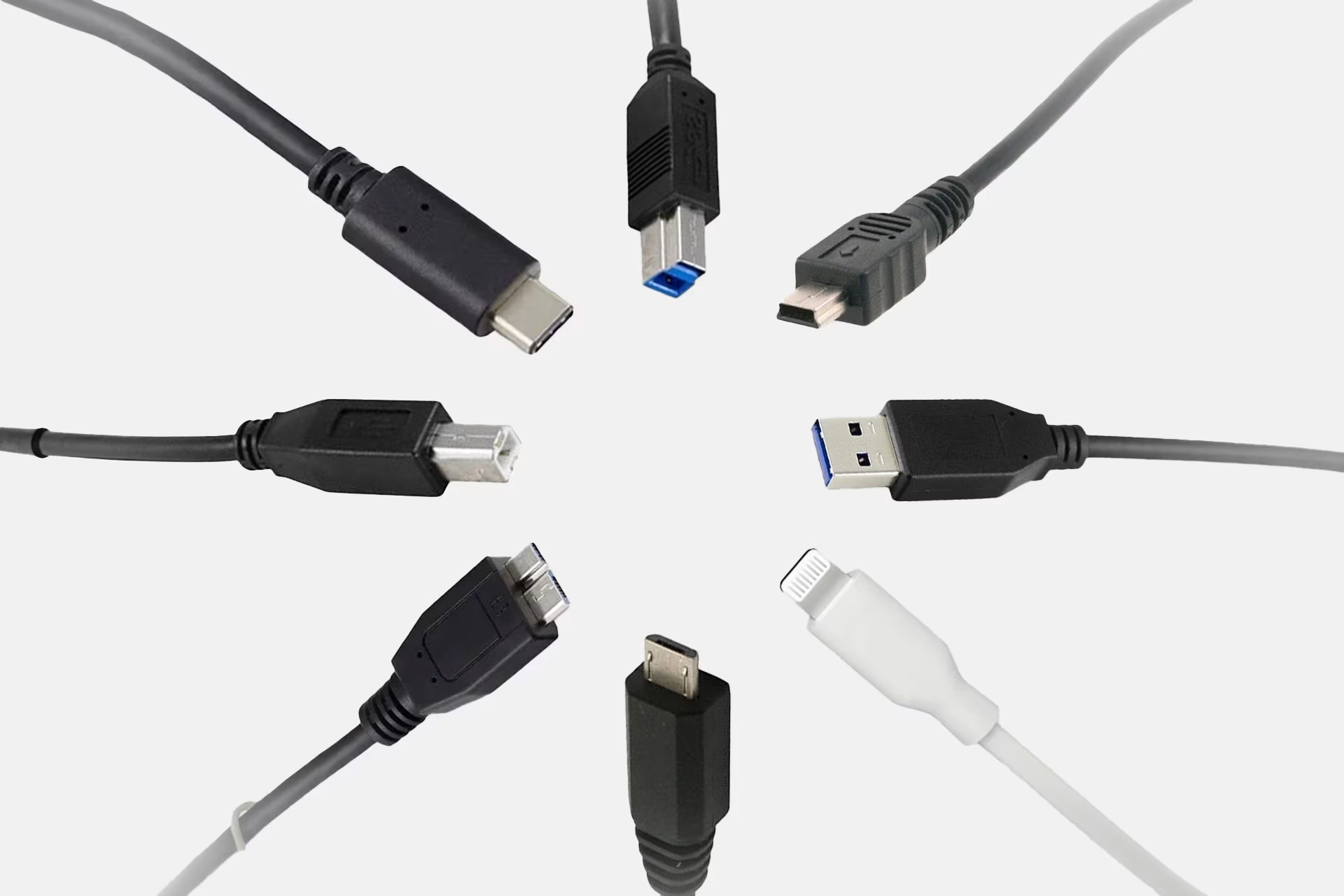
There are so many different USB connector types that it's easy to get confused. The good news for consumers is that USB-C is gradually replacing all other USB types, and we're slowly moving toward using almost exclusively USB-C across all devices. However, since we're not quite there yet, it's worth reviewing all the USB types still on the market. The key takeaway is that after reading this guide, you'll know how to get the right type of cable for charging and data transfer between your devices.
Mini-USB
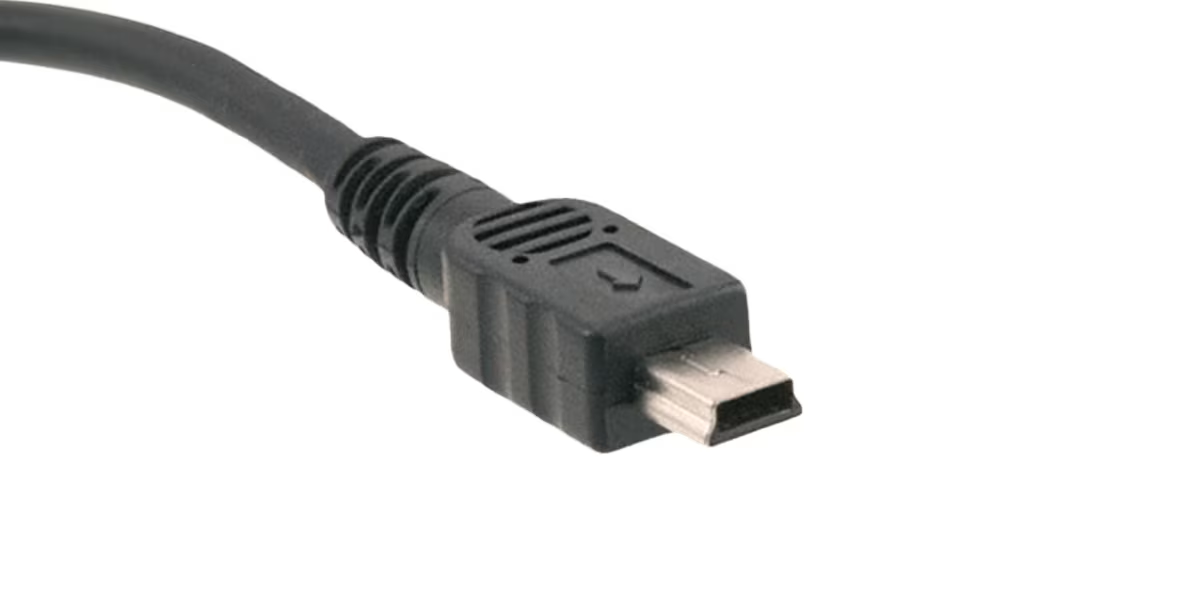
Mini-USB is now an extremely rare and seldom-used connector that was originally used for things like phone charging. It was later replaced by Micro-USB and today by USB-C. You may still find Mini-USB connectors on some cameras.
Micro-USB
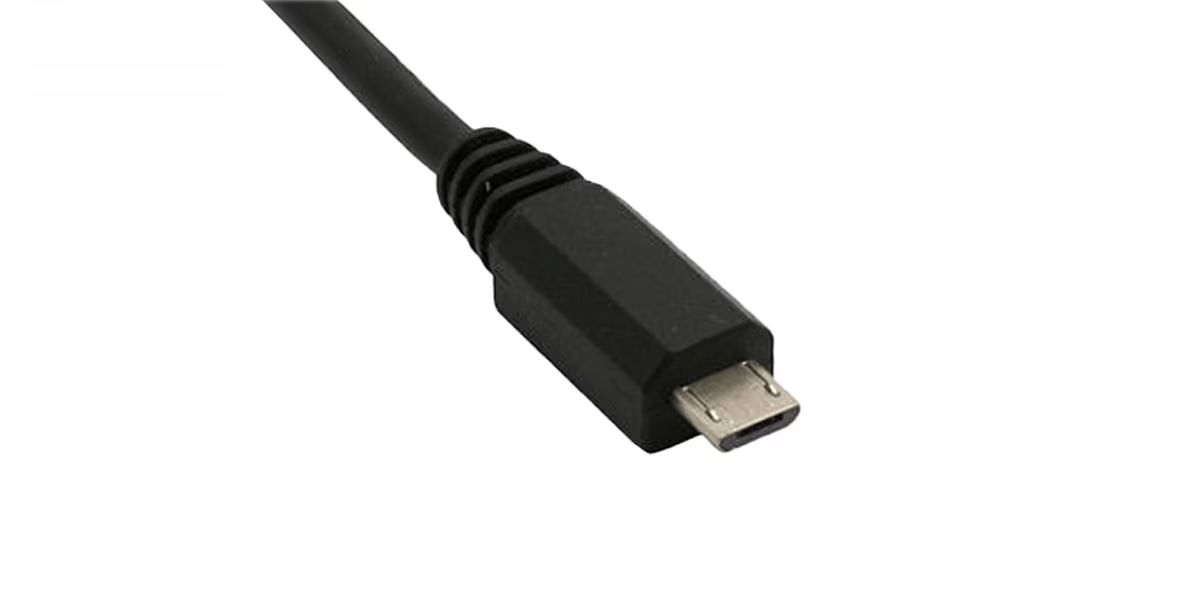
Micro-USB followed Mini-USB as the charging port standard for phones and tablets. It has since been largely replaced by USB-C, but many households still have devices with Micro-USB ports, and some manufacturers continue to use it instead of USB-C to keep costs down.
Micro-USB 3.0
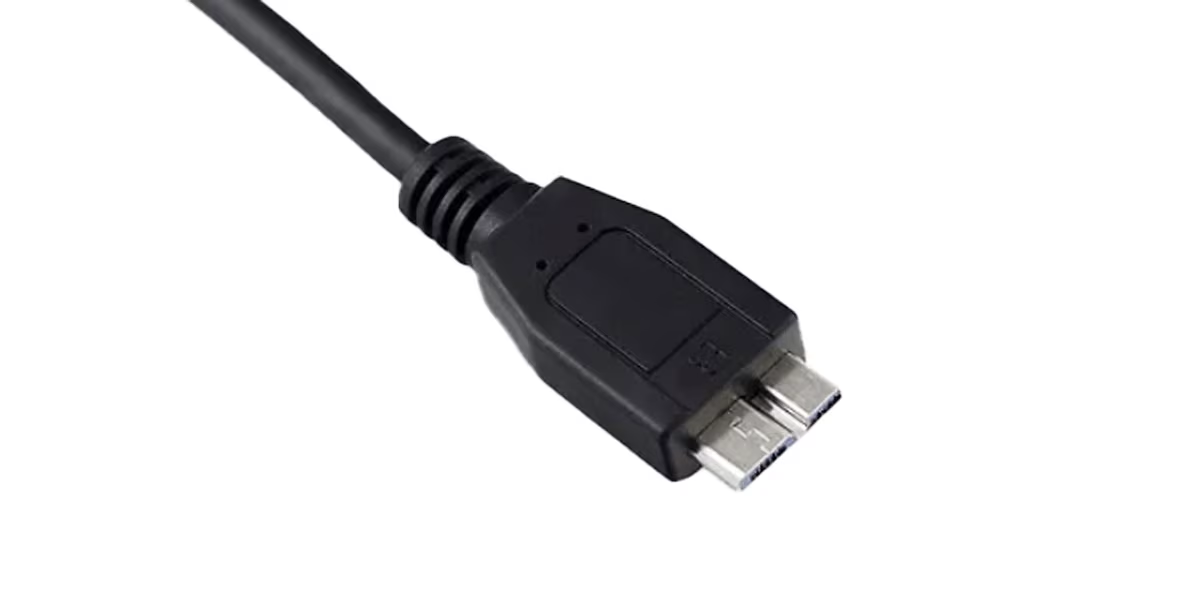
There's also a more powerful 3.0 version of Micro-USB that looks completely different from the standard Micro-USB connector. You might encounter this connection on some external hard drives, for example. This connector was specifically designed to enable faster data transfer before USB-C came to market.
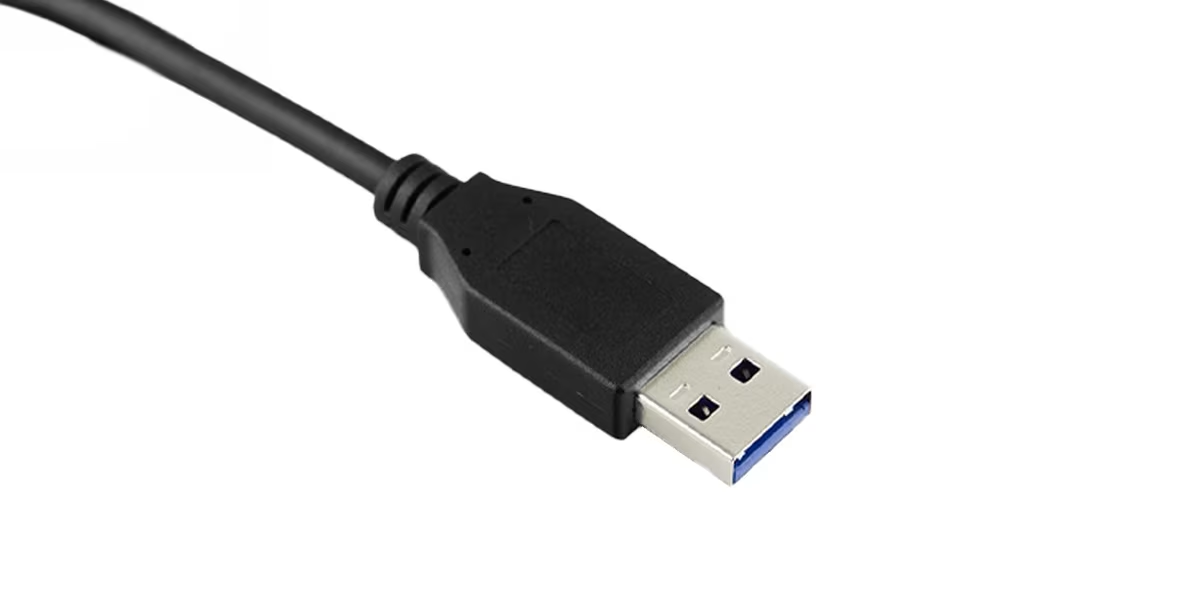
USB-A
USB-A is the connector that always seems to go in the wrong way, no matter how many times you flip it. A USB-A cable always has a different type of connector on the other end that connects to devices like phones. The USB-A connector has been used to connect wired keyboards, mice, or external hard drives to computers, game consoles, or TVs. Phone chargers evolved from fixed units into separate power adapters and cables with USB-A connections, so you don't have to replace both when the fragile cable breaks. Like many other USB standards, USB-A is slowly dying out as USB-C gradually takes over the ports on computers, displays, and even power adapters.
USB-B
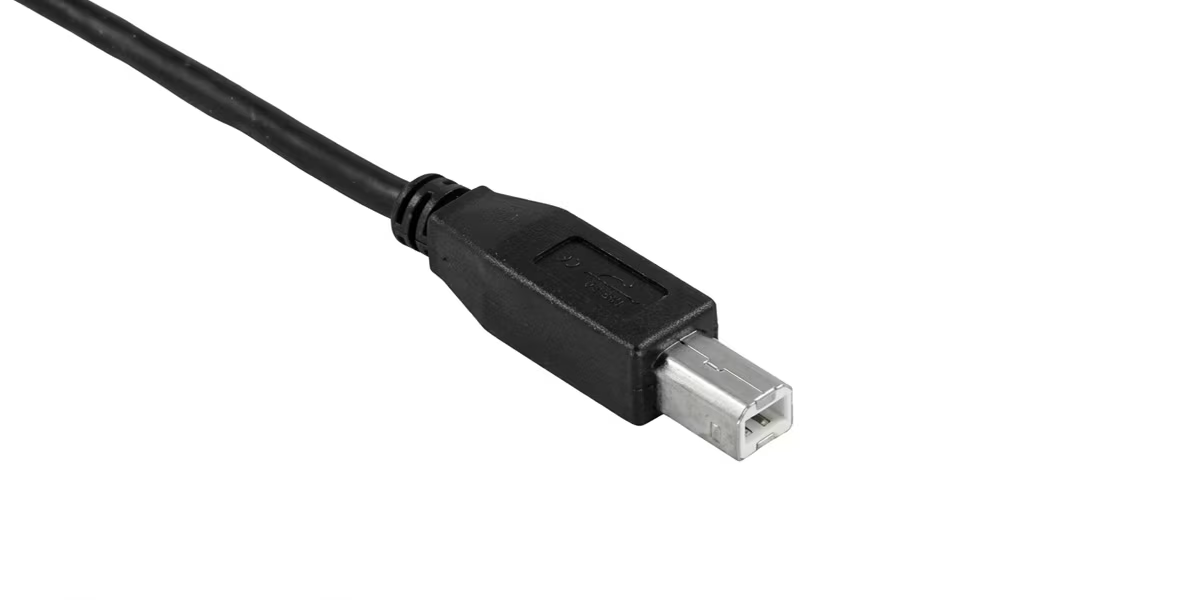
USB-B connectors are used in printers and scanners, though their use is quite limited. Instead of connecting a printer to a computer with a USB-B cable, most cases today involve connecting a computer or phone wirelessly to the printer. This is why the USB-C revolution hasn't reached printers – there simply isn't enough demand for the connector to justify its development.
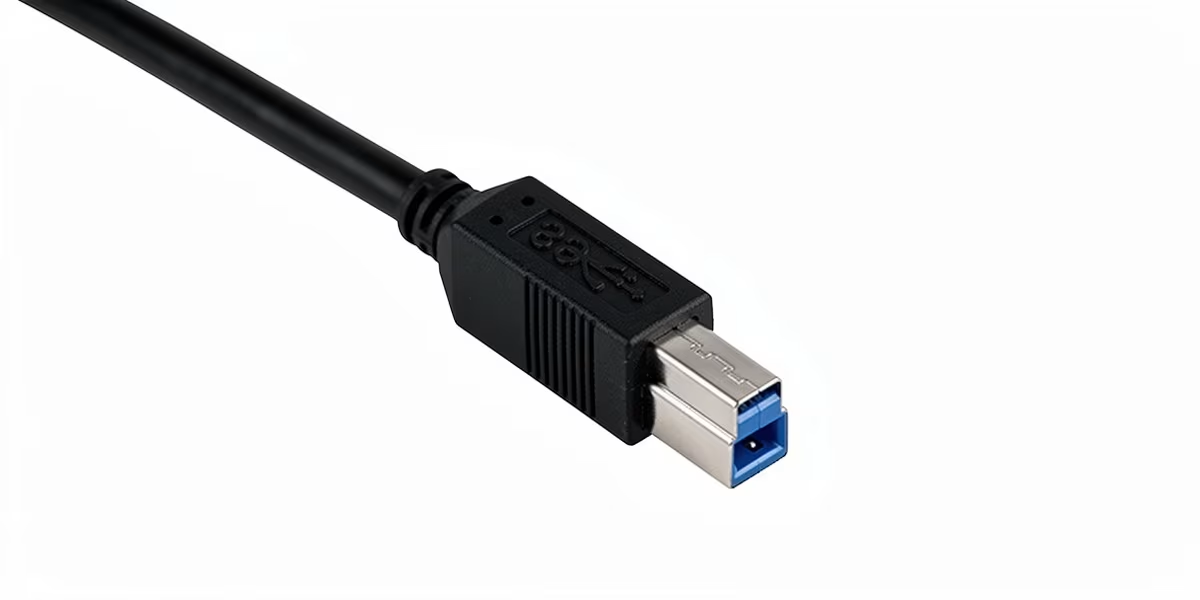
USB-B 3.0
There's also a more powerful 3.0 version of USB-B that looks different from the standard USB-B. You might find this connector on some music players, for example.
USB-C
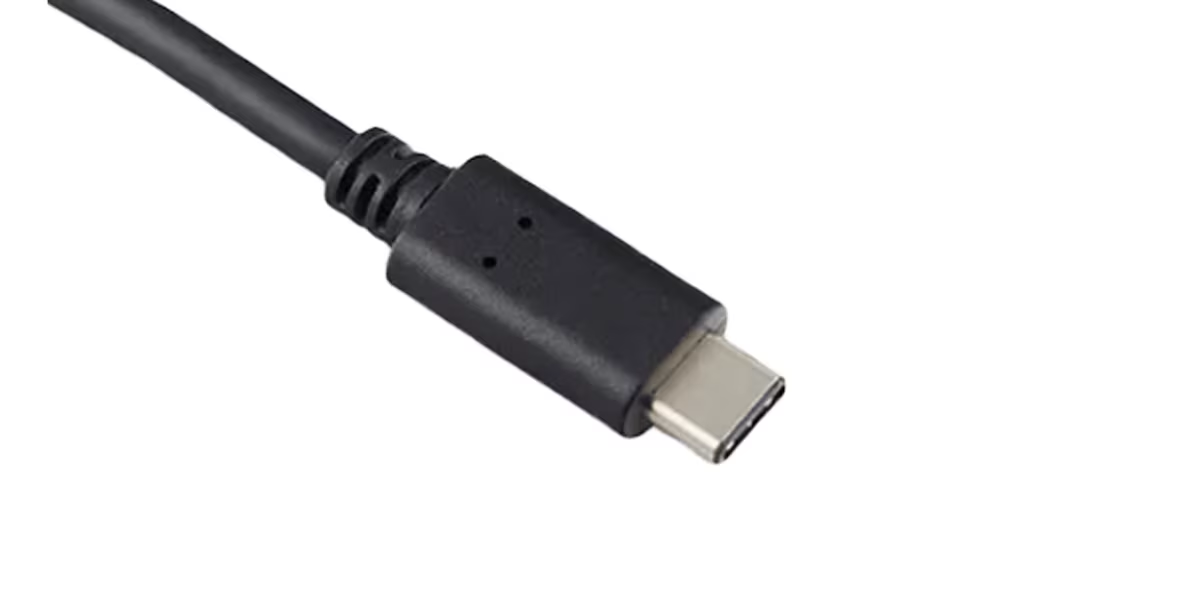
USB-C is the latest connector type that learned from its predecessors' mistakes – a USB-C plug can be inserted into a USB-C port either way. Despite its small and compact form, USB-C has gradually managed to crush many other USB standards, making life easier for consumers as the same cable now works with more and more devices. USB-C is sometimes referred to as 'Type-C'.
USB-C has essentially replaced the currently used USB-A in many laptops, monitors, and power supplies, as well as other USB connectors in devices like game controllers, wireless headphone charging cases, and microphones. Where cables used to have a USB-A connector on one end and something like Lightning, USB-C, or previously Micro-USB on the other, now USB-C is on both ends of the cable. Recently, USB-C also scored a major victory over Apple's Lightning connector – Apple now uses USB-C on all its new devices.
Lightning
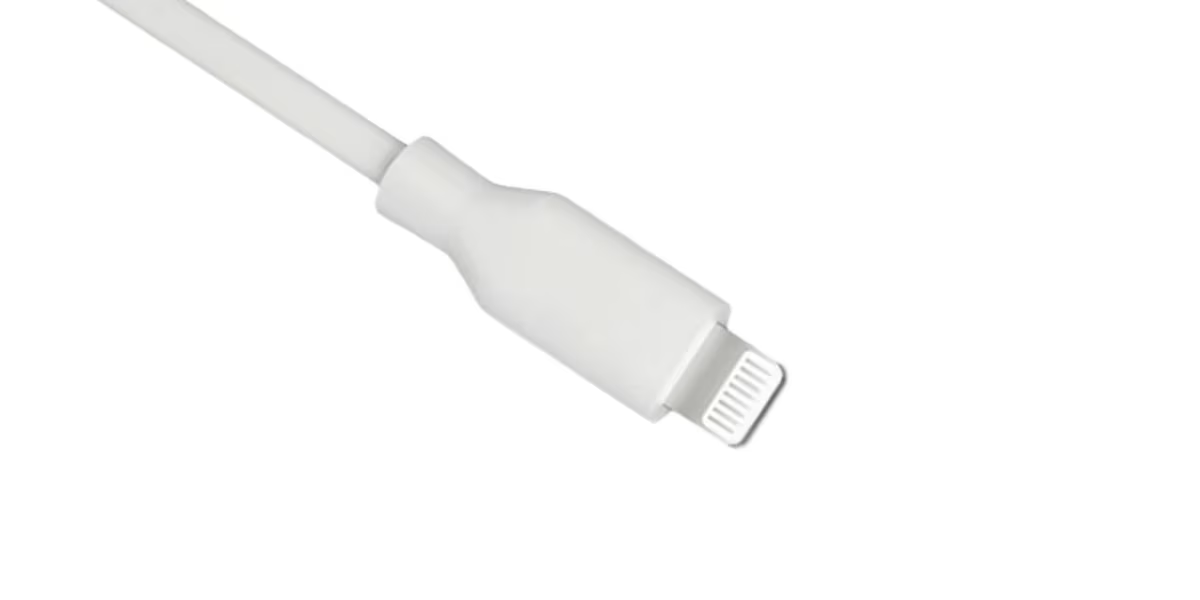
Lightning isn't a USB standard, but since it's been used for the same purposes, it's worth mentioning. Lightning is Apple's proprietary connector that's been used for charging and data transfer on iPhones, iPads, and AirPods. In the latest iPhone models, Lightning has been replaced by USB-C, which will be the universal USB standard for all phones and tablets going forward.
USB Hubs and Adapters
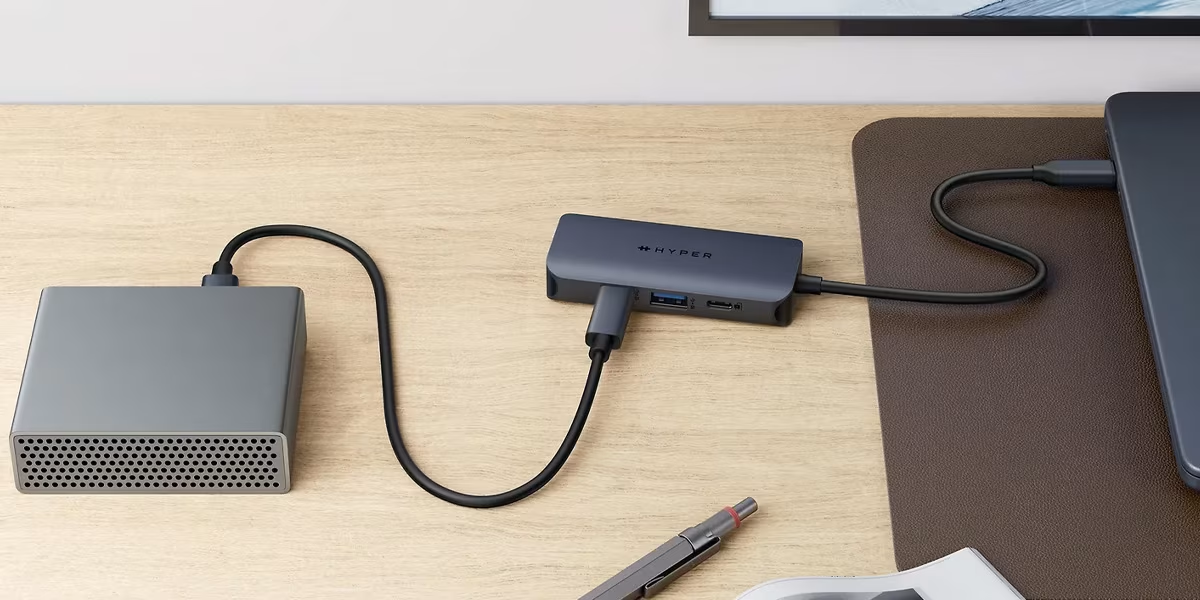
USB hubs and adapters expand and customize your computer's connectivity.
USB Hubs
A USB hub is useful when your computer doesn't have enough USB ports and you need more. A hub can also improve usability and keep your workspace tidier. You connect a USB hub to your computer using a USB-A or USB-C connector (depending on what your computer has), and the hub provides additional USB ports. These can all be the same type or a mix of different ports, depending on what kind of hub you need.
The need for USB hubs has decreased with wireless Bluetooth devices like Bluetooth mice and keyboards, which means there's actually less demand for USB ports than before.
USB adapters
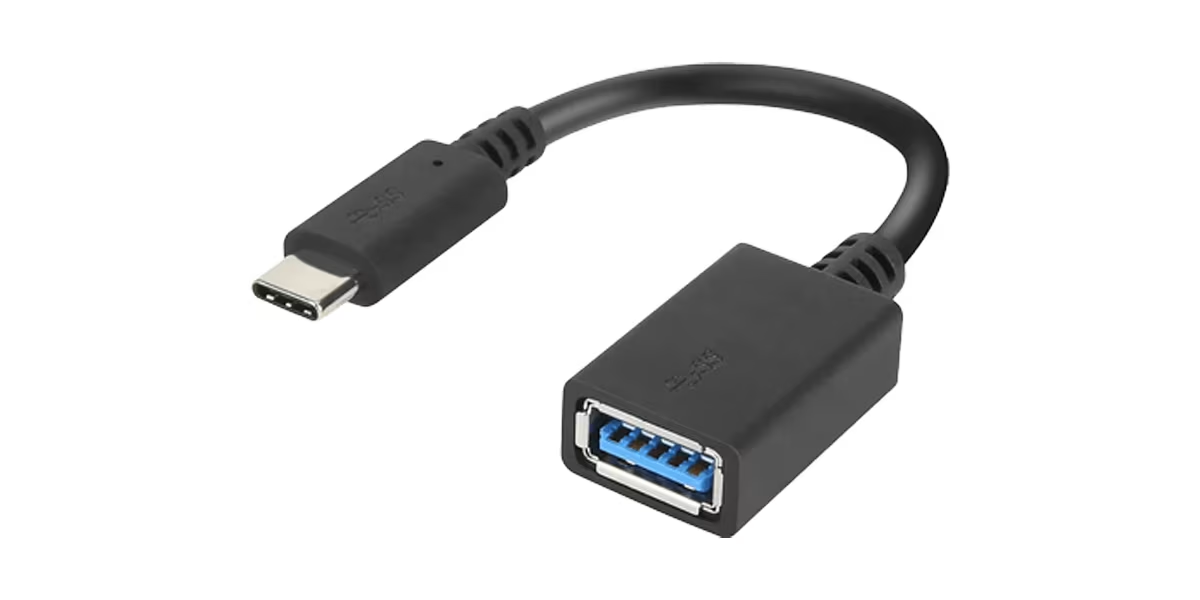
A USB adapter converts one USB type to another. These days, you'll often run into situations where your computer only has USB-C ports, but your wired mouse or keyboard has a USB-A connector—that's when you need a USB-C to USB-A adapter.
Data Transfer Speed and Charging
Like Verkkokauppa.com's deliveries, USB standards have evolved to become increasingly faster. The data transfer speed is indicated by the number after USB – USB 4 is the latest and therefore the fastest. However, it's not quite that simple. For example, USB 3 comes in several different speeds and versions, and the naming conventions have changed over time. For instance, USB 3.0, which transferred 5 gigabits per second, is now called USB 3.2 Gen 1. The table below shows the evolution of data transfer speeds from USB 1.0 to USB 4 with their current names. Keep in mind that actual data transfer speed is affected by many factors, from hardware to software.
| Current Name | Data Transfer Speed |
| USB 1.0 | 1.5 Mbps |
| USB 1.1 | 12 Mbps |
| USB 2.0 | 480 Mbps |
| USB 3.2 Gen 1 | 5 Gbps |
| USB 3.2 Gen 2 | 10 Gbps |
| USB 3.2 Gen 2x2 | 20 Gbps |
| USB 4 | Up to 80–120 Gbps |
'Mbps' stands for megabits per second and 'Gbps' stands for gigabits per second.
USB-C is the fastest connector type
The USB connector type determines what technology it can support. For example, Micro-USB, USB-A, and USB-C can all use USB 3.2 Gen 2 technology, meaning their data transfer speed can reach 10 gigabits per second. However, only USB-C supports USB 3.2 Gen 2x2 or USB 4 technologies, making it the only connector capable of speeds over 20 Gbps.
Do you know what the '2x2' refers to in the USB 3.2 Gen 2x2 standard? It means it uses two 10 Gbps lanes to double the data transfer speed.
Why don't all devices use the fastest possible USB version?
Monitors, for example, may have multiple USB ports, with one being more powerful than the others. Why aren't all ports the fastest available on the market? This is influenced by cost and compatibility, but also by necessity – wired mice and keyboards work perfectly fine with slower USB versions, while charging your phone or transferring data to a flash drive or external hard drive is faster through a more powerful USB port.
- Cost: More powerful USB versions are more expensive for manufacturers, so they can offer consumers the option to use the most powerful USB version while saving on some USB ports, keeping the price of a monitor, for example, reasonable.
- Compatibility: Not all devices necessarily support the very latest USB standards yet, so a product is compatible with more devices if it has different types of USB ports.
So what is Thunderbolt and how does it differ from USB-C or USB 4?
USB-C is a connector type that can feature USB 4 or Thunderbolt technology. Thunderbolt is a powerful connectivity technology developed jointly by Intel and Apple, best suited for rapid transfer of large files in photography and video production, for example. Additionally, Thunderbolt can support connecting multiple high-resolution displays to a computer, making it better suited for professional use than USB-C. In short, Thunderbolt is a more powerful and versatile connectivity technology than USB-C.
Like USB, Thunderbolt has also evolved into increasingly faster versions. The fastest currently available is Thunderbolt 5, with speeds up to 80 gigabits per second. A Thunderbolt cable is usually slightly thicker than a USB-C cable and can be identified by its lightning bolt logo.
Charging – as long as the port and connector match, it'll (probably) work
Generally speaking, as long as the USB port on your device and the connector on the cable are the same type—like USB-C—data transfer and charging will work, though speeds may vary and some features might be missing.
For example, while Thunderbolt can be used to charge and transfer data for much more powerful devices, it'll also charge your phone, but it might lack features like fast charging that USB-C has, since USB-C is designed specifically for charging and data transfer on phones and other small portable devices. On the flip side, while your laptop's USB-C charger will work fine for charging your phone, the reverse probably won't work—a phone's lower-powered USB-C charger won't have enough juice to charge a laptop battery.
Give us feedback – was this article helpful?
We’d love to hear from you! Rate this article on a scale of 1–5 and let us know how we could make it even better.
Give feedback (Ulkoinen palvelu) (Avautuu uuteen välilehteen)